
Solving the cli-prf-pbf Name Problem

Download PDF
SolvingTheNameProblem.pdf
The title of this article may be a bit cryptic, but the “Name Problem” will be immediately understood by any Axys user who has:
a. created cli/grp files
b. updated performance history
c. changed Name, Name2, or Name3 in the cli/grp files
d. subsequently run a performance history report
e. and wondered why the name on the report doesn’t match the name in the cli/grp file
Sound familiar? Worse yet is having upper management run a performance history report, bring over the printed output, and ask “What can be done to insure that this doesn’t occur again?”
As you know, when a prf/pbf file is created for the first time, the name fields are copied over from the corresponding cli/grp file. Once the name fields are in place in the prf/pbf files, however, they are never again copied over from the cli/grp files during the performance update process. Wouldn’t it be nice if the name fields would stay in synch?
In this article, we will create a report that will identify and display all prf/pbf whose name fields do not match the name fields of their corresponding cli/grp files. We won’t solve the problem entirely (that is, we won’t modify the performance update report so that the names are copied over every time). It is possible to do this, but the changes are intricate. The performance update report is mission critical to your system, and as such, you should avoid making changes to it. If having a report that will tell you when the cli/prf/pbf name fields do not match would be useful to you, start up Report Writer Pro, fire up your text editor, and read on.
1. In Report Writer Pro, create a Portfolio Register
2. Remove all columns except for portfolio code and portfolio name
3. Add columns portfolio name 2 and portfolio name 3.
4. To conserve space, change the width of all three name columns to 25
5. Create custom user defined columns for $perfnam1, $perfnam2, and $perfnam3. These labels do not exist yet, but that’s OK. Define the width of these name columns as 25.
Your list of columns should resemble the list below:
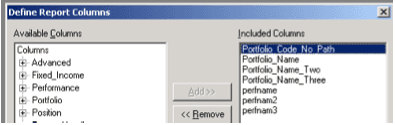
Run your report for any group. The output should resemble the picture below (note that the rightmost and leftmost columns are slightly cut off in the picture below):
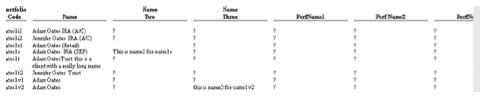
6. Save your Report Writer Pro report as _namefix.rpw
7. Using Windows Explorer, locate the _namefix.rpw file, make a copy of it, and name the copy _namefix.rep
8. Open _namefix.rep in your text editor. It should resemble the following:
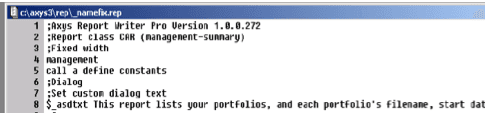
9. Locate the section of code which defines the dialog box, and add the statement ASCG_PERFFEE. This will give us a radio button selection for Net of Fees/Gross of Fees

10. Add the following “if…else” statement after the END of the dialog box.

11. Locate the section of code that fills all of the $_ntc variables. Add the 9 lines as shown below…in the exact location shown.
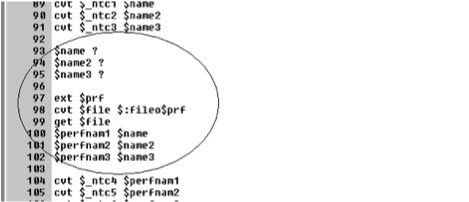
12. Almost done. Save and run your report now, just as a check. If you’ve done everything right thus far, your output should resemble the following…
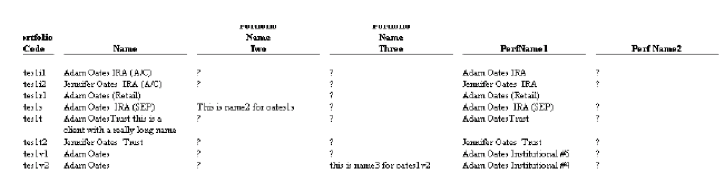
13. Two more changes, then we’re done. The report as it stands now will show all the names in the cli/grp files along with the names in the corresponding prf/pbf files. All we really want to see are those situations where the names are different, since those are the cases that will need to be corrected. So…add the following if statement (be careful typing!) and indent the printing statement as shown below:

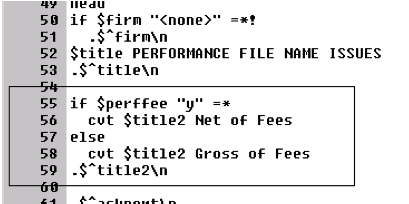
14. As the last change, let’s add some text to the report header to tell us whether we’re comparing cli/grp names to prf names or to pbf names. Scroll up in the file to locate the header section, and add the following five lines of code
All done! Save and run your report.
As usual, download this report, and others, by visiting the Free Download section of our website, www.cssi.org.
