
How To Create a Group of Composites

Download PDF
HowToCreateaGroupofComposites.pdf
Two of the reports in CSSI’s Free Downloads area (see Free Downloads on www.cssi.org) display information about composites – the Composite Group Listing report and the Composite Validation report.
The Composite Group Listing report (_cpgtree.rep) allows the user to enter a group of composites, such as @cmpgroup). The report will display all members of each composite, along with the entry/exit date for each member.
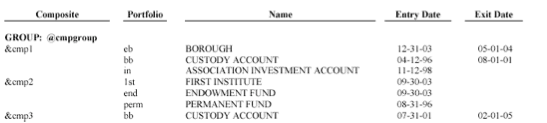
The Composite Validation report (_cpglist.rep) allows the user to enter any client group (such as all fee paying, discretionary clients) followed by a group of all composites (@cmpgroup). The report will display all members of the client group, listing all composites containing each cli (and identifying those cli not in any composite).
Shortly after we put these two reports in the Free Downloads area, the emails started coming in… “How do I create @cmpgroup, a Group of Composites?” In this article, I’ll walk you through the process of creating just such a group. If you’re ready, start Axys and follow along.
1. Create a new group in Axys (File New Group)
2. Within the dialog box, navigate to your cpg folder AND tell it to show files named *.cpg. You should now see all of your composites in the dialog box.
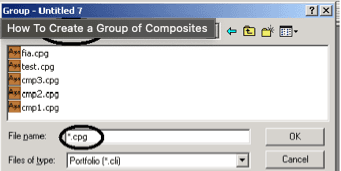
3. Click the Add All button. This is important. The process does not work unless you select Add All.
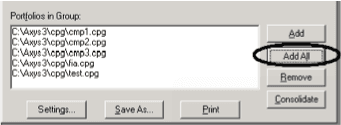
4. Save your group and give it a name (such as cmpgroup.grp)
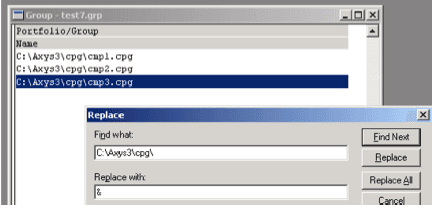
5. Open the group. Notice that all your composites are listed, along with the full path name.
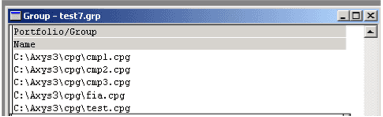
6. Since you add to Add All in step 3, this is your chance to delete any composites you do not want in this group.
7. Finally, select Edit Replace. Replace the path name (shown above as c:\axys3\cpg\) with &, choosing Replace All.
8. Save and close. All done.
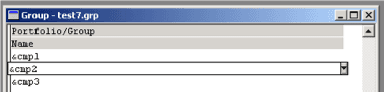
Now you have a group of composites. As always, send me an email if you get stuck!
