
How To Identify Missing Cost Information

Download PDF
HowtoIdentifyMissingCostInformation.pdf
As you know, Axys provides the means for maintaining cost basis in Axys. You can specify closing methods (highest cost, FIFO, etc). You can sell against specific lots using the LOT:QTY specification in the trade blotter. Provided that you enter cost date and cost amount for all deliver-in transactions, Axys does a good job of maintaining cost basis (except for wash sales…but I’ll save that topic for next quarter’s newsletter article).
The key to maintaining cost basis in Axys is entering cost date and cost amount for all deliver-in transactions (si, li, ti). If you do not enter cost date and cost amount on a deliver-in transaction, Axys will default to market-value-on-trade-date for all of its cost calculations....and on all of its reports. None of the standard Axys reports display question marks for missing cost information. The standard Axys reports display the default value of market-value-on-trade-date, so identifying the specific transactions that are missing cost information can be somewhat of a challenge.
In this article, I’ll show you how to use a combination of Report Writer Pro and Replang to create a report that will identify all deliver in transactions with missing cost information. So, continuing in our tradition…if you have a desire to do some programming, start up Report Writier Pro, start up your text editor and read on.
1. In Report Writer Pro, create a new report using the Transaction Summary template. Include the following 13 columns: Portfolio_Code_No_Path, Tran_Code, Security_Type_Code, Security_Symbol_No_Type, Security_Name_Or_Split_Description, Trade_Date, Original_Cost_Date, Quantity, Trade_Amount_Local, Original_Cost, Source_Dest_Type_Code, Source_Dest_Symbol_No_Type, Lot
2. Under Define à Options, change the Report Options to make this a Management Mode report
3. Under Data à Filter, add the following four lines to the Filter
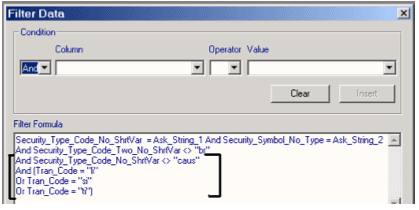
This filter modifies our transaction summary to include only transactions with tran code li, ti, or si. Additionally, it will exclude deliver-in transactions for cash.
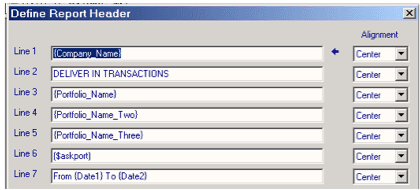
4. Finally, under Define à Report Header, line 2 of the Report Header to be “DELIVER IN TRANSACTIONS” and add ($askport) as header line 6.
5. Test your report. Your report should resemble the one pictured below.
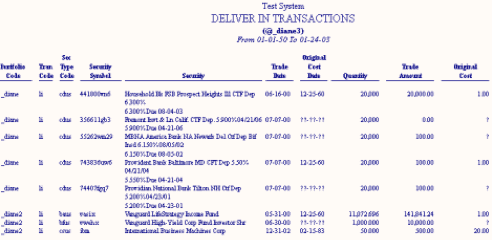
6. Save your Report Writer Pro report. I saved mine as _nocost.rpw. In Windows Explorer, copy _nocost.rpw to _nocost.rep. Now we have a .rep file we can edit without affecting our original .rpw file.
7. Open _nocost.rep in your favorite text editor. It should look something like this:
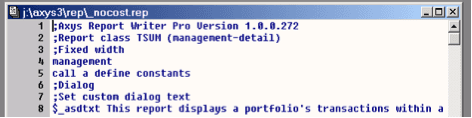
8. Find the DIALOG… END section of the dialog box statements. Comment out line 25 by placing a semi-colon in front of the line, and add line 26 as shown below

We don’t want a checkbox for ‘Include split transactions” but we do want a checkbox which will allow us to show only those transactions with missing cost information.
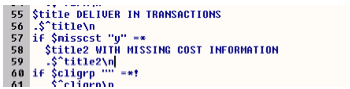
9. add lines 57, 58, 59 as shown below.
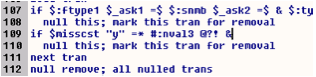
10. and add lines 109 and 110 as shown below
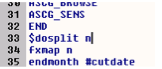
11. and add line 33 as shown below
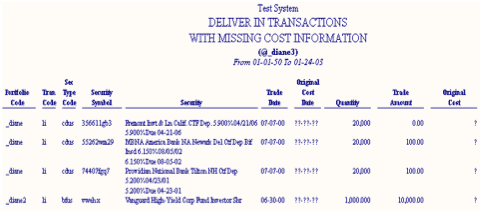
All done. Save your rep file and run it. Your new report will display only the deliver in transactions that are missing cost information.
As usual, get this report, and others, by visiting the “Free Downloads” section of our website, www.cssisoltuions.com
