
How To Exclude A Security From Billing

Download PDF
HowToExcludeASecurityFromBilling.pdf
I love Report Writer Pro. It is an extremely useful tool. If you have not explored Report Writer Pro, I encourage you to do so. You can meet many of your custom reporting needs using this tool…with no programming whatsoever. Like all tools, though, there are some things it just won’t do – and one of those things-it-won’t-do is Fee Statements. You can modify quite a variety of reports using Report Writer Pro…but you cannot, unfortunately, modify Fee Statements.
In this article, we will show you how to make some simple changes to the Fee Statement report. We will show you how to modify the fee statement with the appropriate code to exclude a security from billing – a request I hear time and time again. Everyone wants to know how to exclude a security from billing. If you’re one of these folks, and if you have a desire to do some programming, start up your text editor and read on.
Here’s the scenario:
a. We’ve promised one of clients, Mr. Oates, that we will exclude his cash from his fee statement
b. We’ve posted a label $nobill to Mr. Oates’ cli files, and given it the value of causcash, the type and symbol of the holding we want to exclude
c. Now we want to modify the fee statement so that it will exclude the security that we’ve posted in $nobill
Before we get started, let’s run a standard billing statement for Mr. Oates, just to see what it looks like.
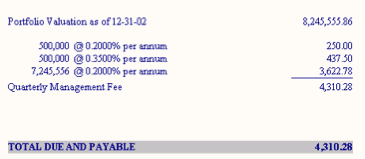
Follow the steps below to modify the fee statement program to exclude whatever security we have stored in $nobill.
1. In Windows explorer, navigate to your \axys3\rep directory
2. Make a copy of bill.rep. I saved my copy as mybill.rep. Now we have a .rep file we can edit without affecting the original billing statement report. This is important – never modify the original Axys reports. Make modifications only to your copies.
3. Open mybill.rep in your favorite text editor. It should look something like this:
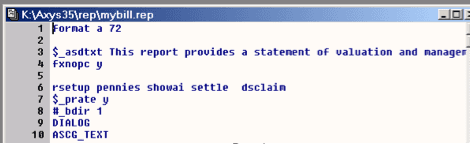
4. Locate lines 60 through 68 – this is the section of code that loops through all of the client’s holdings to accumulate the portfolio market value.
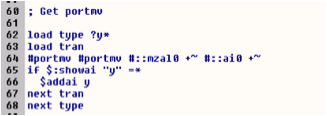
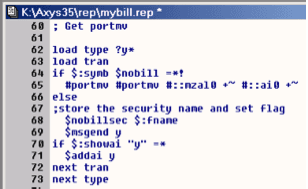
5. Replace the old line 64 (above) with the new lines 64 through 69 below. What we are doing in this section of code is telling Axys: If the symbol is not the same as what we’ve stored in $nobill, then accumulate the market value as usual. Otherwise (ie, if the symbol is the same as what we’ve stored in $nobill) store the name of the security in a label $nobillsec.
6. OK. At this point, we’ve prevented the $nobill security from being accumulated into the portfolio market value, and we’ve stored the full name of the $nobill security. Let’s add a message to the bottom of the billing statement to tell the client that we’ve excluded the holding. Add lines 252 and 253 as shown below.
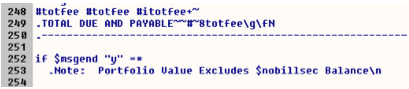
7. lines 327-329 as shown below.
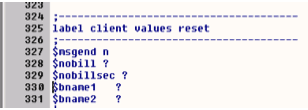
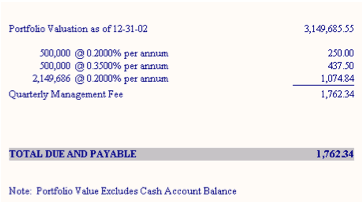
All done. Save your rep file and run it. Your new fee statement report will exclude the $nobill security from the Portfolio Valuation and print an appropriate message at the bottom
As usual, get this report, and others, by visiting the “Free Downloads” section of our website, www.cssi.org.
Learning more…Have you created reports in Report Writer Pro…but you need to do just a little more customization? You may need to learn Replang, Advent’s Report Writing Programming Language. CSSI teaches three levels of Replang Programming:
Introduction to Replang Programming
Intermediate Replang Programming
Advanced Replang Programming
Who should take these classes? Experienced Axys users who have a need to create custom reports beyond the capabilities of Report Writer Pro. These are programming classes…while a background in computer programming is not necessary, you should have a familiarity with programming concepts such as if statements and subroutines. Material is in-depth…and there’s a lot of it…so come prepared to learn.
Classes are held at the same time and location as the various Advent User Group regional meetings across the country, generally the day before or the day after the AUG meeting. For more information, see the Training link on www.cssi.org. (be sure to indicate that you are an AUG member in order to receive the AUG member discount).
