
How to Combine Reports into a Package – Free!

Download PDF
HowToCombineReportsintoaPackage.pdf
From this article’s title, I’ll bet you think I’m going to write something having to do with Compound Reports in Axys. I could…but I’m not. The compound reporting feature in Axys is powerful and easy to use. But…like everything else in the world, it has limitations. Suppose, for example, you have a portfolio appraisal for the Smith Family Group +@smith and a billing statement for the Smith Family Billing Group +@smith2. Or suppose you have a management style report for @smith that you want to combine with a portfolio style report for +@smith. You can’t do either of these things using compound reports.
In this article, you will learn how to combine several Axys reports together into a single Axys report. Like all of the previous CSSI “how-to” articles, what I’m going to show you will involve a little bit of programming and scripting on your part. Unlike all of our previous articles, however, what I’m about to show you has nothing to do with Replang. So…don’t be afraid. I don’t even need to start with the usual “start up your text editor and read on” phrase. This time, it’s just “read on!”
Here’s the scenario:
a. We want to run an appraisal for the +@smith group
b. We want to run a billing statement for the +@smith2 group
c. We want to combine both of these reports into a single report package to send to the client.
Follow the steps below to create the report package:
1. run the standard appraisal for the +@smith group. For this example, this is a four page report.
2. save it as a Report Metafile named car.rmf (be sure the file type is rmf)
3. run the billing statement for the +@smith2 group
4. save it as a Report Metafile named bill.rmf (be sure the file type is rmf)
5. In Windows, open a DOS command prompt by choosing Start à Run. In the Run dialog box, type “cmd”
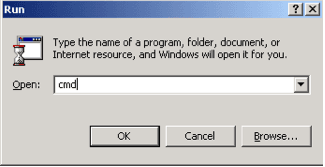
6. When you click OK, the DOS command prompt opens

7. Change to the drive containing your user directory by typing the drive letter followed by a colon (the press enter).

8. Suppose your Axys user directory location is p:\axys35\users\diane. Navigate to your user directory by typing “cd” followed by your full user directory location (minus the drive letter and colon).
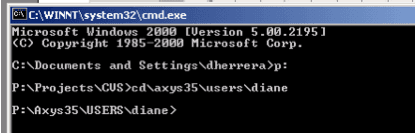
9. Combine the rmfs into a single report by typing “copy /b car.rmf + bill.rmf big.rmf” (This statement copies car.rmf and bill.rmf into a single big.rmf)
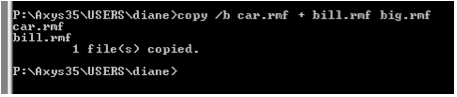
10. Close the DOS window by typing “exit” and pressing enter.
11. In Axys Reports, open the big.rmf. Change your page numbering options to “Consecutive” and do a Print Preview to convince yourself that this is indeed one big report and that the page numbering is indeed consecutive (ie, the fee statement is shown as page 5).
Can this be scripted? Absolutely! Can the big.rmf be saved as a pdf? Certainly. Can this technique be used to combine management reports and portfolio reports? Of course! Experiment with this technique, and you will find that you have just added a very powerful tool to your arsenal of Axys Tips and Tricks.
Learning more…Have you created reports in Report Writer Pro…but you need to do just a little more customization? You may need to learn Replang, Advent’s Report Writing Programming Language. CSSI offers three levels of Replang Programming classes: Introduction, Intermediate and Advanced.
Who should take these classes? Experienced Axys users who have a need to create custom reports beyond the capabilities of Report Writer Pro. These are programming classes…while a background in computer programming is not necessary, you should have a familiarity with programming concepts such as if statements and subroutines. Material is in-depth…and there’s a lot of it…so come prepared to learn.
Classes are held at the same time and location as the various Advent User Group regional meetings across the country, generally the day before or the day after the AUG meeting.
