

In this quarter’s article, we will show you how to create an Assets Under Management by Sector report. Recall that the standard Assets Under Management report displays a column for each asset class, along with a total Market Value column. We will show you how to modify the AUM report slightly in order to create a column for each sector, rather than each asset class. By now, you know the next sentence — If you have a desire to do some programming, start up your text editor and read on.
1. In Windows explorer, navigate to your \axys3\rep directory
2. Make a copy of aman.rep. I saved my copy as _aumsect.rep. Now we have a .rep file we can edit without affecting the original Assets Under Management report. This is important – never modify the original Axys reports. Make modifications only to your copies.
3. Open _aumsect.rep in your favorite text editor. It should look something like this:

Figure 1.
4. Locate lines 63 through 88. Line 63 is the start of a section that will loop through all of the asset classes and build all of the column headers. We want to modify this section so that it uses sectors instead of asset classes.
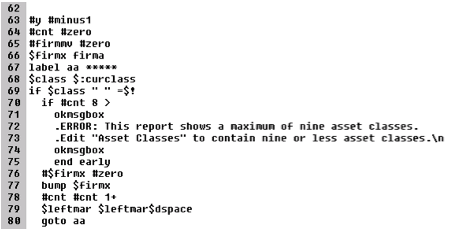
Figure 2.
5. At the blank line 62 (see above) insert a list of your sectors, as shown below. Note that the list below shows MY sectors…you will want to type in YOUR sectors. Type them in exactly as they appear in your sector file. Note also that the Assets Under Management report limits the display to nine asset classes. We will not change that restriction in this article. Limit your list of sectors to nine sectors. Start your list of definitions with $firma, $firmb, $firmc, and so on. In the example below, I have six sectors on my system. I have entered a seventh variable, $firmg, which I am calling “Other.” The purpose of this column will be to catch any holdings that may not have a sector defined. It is just for safety – to make sure all holdings are accounted for and displayed. The very last entry is set to ? (a question mark)
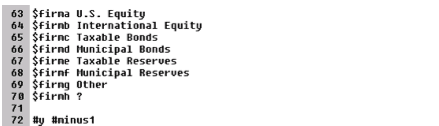
Figure 3.
6. Modify lines 76 and 77 as shown below (compare to the old 68 and 69 shown in Figure 2). Additionally, modify the error message in lines 80 and 81 (compare to the old 72 and 73 shown in Figure 2). What we are doing in this section of code is telling the report to loop through our list of sectors instead of through the asset classes.
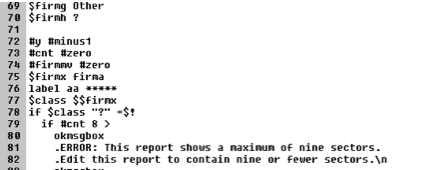
Figure 4.
7. Find the report title (should be about line 116 or so). Change the report title from “ASSETS UNDER MANAGEMENT” to “ASSETS UNDER MANAGEMENT BY SECTOR” as shown below.

Figure 5.
8. Now find “label bb” which should be located at line 128 or so. Insert a line (shown as line 129 below) just above the “label bb” line, and modify lines the three lines below the label bb line (shown as 131, 132, and 133 below). Insert a “bump $firmx” line (shown as line 134 below) just above the “goto bb”
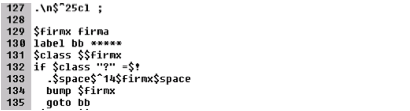
Figure 6.
9. Almost done. You will repeat changes similar to those step 8 three more times. Find label cc (should be around line 150 or so). Add two lines above label cc (the two lines shown as 149 and 150 below), and modify the two lines below label cc, and add a “bump $firmx” line above the “goto cc”
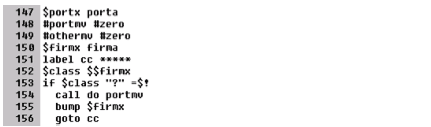
Figure 7.
10. Find label ee (should be around line 181 or so). In this section, all you need to do is modify lines 182 and 183, as shown below. No need to add a line above the label ee, nor is there a need to add a “bump $firmx” line. Repeat this exact change at label ff (found at line 200 or so).

Figure 8.
11. For the last change, find label do portmv (should be line 212 or so). Change the section so that it looks like the one below
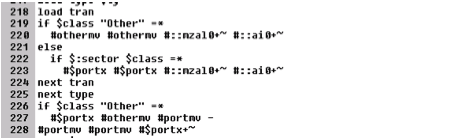
Figure 9.
Save your rep file and run it. Your new Assets Under Management by Sector report will show each client’s assets – one column for each sector.