

In Axys 3.3, Advent added hyperlink functionality in Axys Reports. If you run a Performance Report, for example, you see that the portfolio name field is a hyperlink (designated by the blue color), as are the Contributions, Withdrawals, Realized Gains, Unrealized Gains, Interest, Dividends, and Fees lines. Clicking on any one of these blue hyperlinks will launch another Axys Report. The specification of which report should be run when you click on a link is contained within the definition of each hyperlink (which is contained in the report code).
In this article, we will show you how to add hyperlinks to your Report Writer Pro reports. We will use a combination of Report Writer Pro and Replang to define hyperlinks within a sample report. We will add a hyperlink to the Change in Market Value report. The hyperlink will run the Date-To-Date Gain Loss report. Continuing in our tradition…if you have a desire to do some programming, start up Report Writer Pro, start up your text editor and read on.
1. Before we get started with Report Writer Pro, we need first to record a macro that will be used by our hyperlink. As stated, our intent is to define a hyperlink in the Change in Market Value report which will call the Date-To-Date Gain Loss Report. The first step, then, is to record a macro that will run the Date-To-Date Gain Loss report. Do this now and save it as _dt2dt.mac
2. In Windows Explorer, find your _dt2dt.mac file and rename it to _dt2dt.smc
3. Move the .smc file into the directory specified by your $pathsmc setting (usually \axys3\smc\). *.smc macros are System Macros, which is how Axys designates macros used in drilldowns versus your normal Axys report macros.
4. In Report Writer Pro, create a new report using the Change In Market Value template
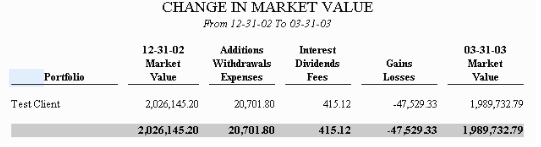
5. Save your Report Writer Pro report. I saved mine as _chgmv.rpw. In Windows Explorer, copy _chgmv.rpw to _chgmv.rep. Now we have a .rep file we can edit without affecting our original .rpw file
6. Open _chgmv.rep in your favorite text editor. It should look something like this:
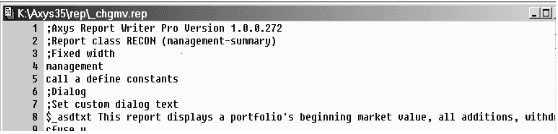
7. Add line 45 as shown below

8. Add the following subroutine at the very end of the report (just above the “trailer” statement).
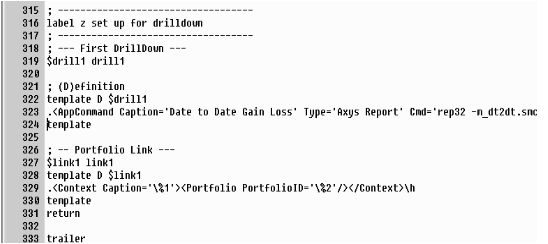
The full text of line 323 (cut off in the picture above) is:
.<AppCommand Caption=’Date to Date Gain Loss’ Type=’Axys Report’
Cmd=’rep32 -m_dt2dt.smc -p\%1 \034-b\%2 \%3\034 -t -J -x -su -z
\034-l\$fx \%4\$gname11 \%5\$__sens $_sens\034' />\h
In essence, this line is the same as the line you would use in a script file to call a macro and pass it two dates. The \034 in the line is equivalent to a quotation mark. In a script file, you would call a two date macro using the command
Rep32.exe –mmacroname –pportcode “-bdate1 date2” which is what the command above is doing.
The extra parameters are:
-J defines the last report run as the report run from the Reports Menu, not any report run from a drilldown
-x tells the drilldown report to run without displaying any dialog box
-su tells Axys to leave the drilldown report window open after running the report
-z tells the drilldown report to inherit settings from the original report, not from any subsequent drilldown report (important when the user drills down several levels)
The last line of the AppCommand statement passes the reporting currency, the portfolio name, and other report settings from the original report to the drilldown report. Hang in there, we’re almost finished!
9. move the “dosens” statement from line 13 down to line 30…and add $_sens after the “dosens”

10. find the print line at line 233. The original print line is all one line. (subb1, subb2, subb3, subb4, subb5 all on the same line of code). We want to turn the “Gains” column into a hyperlink. The Gains column is the next-to-last column (subb4). Place your cursor just after the subb3 and hit enter to insert some blank lines. Insert the following section of code (lines 234 to 251) and then add a period before the subb4 in line 252 as shown below.
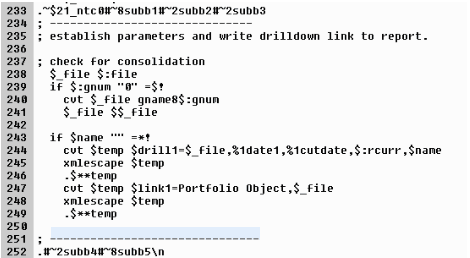
All done. Save your rep file and run it. Your new report will display a hyperlink in the gains column of the change in market value report. When clicked, the hyperlink will run the Date to Date Gain Loss report for the correct portfolio and date range.