

For most money managers, a client’s asset allocation is a significant concern. When a new client is brought into the firm, a great deal of time is spent talking with the client. Money managers design questionnaires to gather data on age, children’s ages, current assets, etc. All of this data is used to discern the client’s risk tolerance and to thereby arrive at an optimal asset allocation. After determining the client’s optimal asset allocation, the money manager then devises an investment strategy that will take the client from their current allocation to their optimal allocation.
Suppose you determine that a client’s optimal allocation is 50% US Equity, 15% International Equity, 15% Taxable Bonds, and 20% Municipal Bonds. Suppose further that the client currently holds a large number of balanced mutual funds. How do you classify these balanced mutual funds in your security file so that the client’s current asset allocation is correctly reflected on Axys reports?
The Fidelity Balanced Fund, for example, is a mutual fund whose composition is 60% US Equity and 40% Taxable Bond. The American Funds Capital Income Builder Fund has a composition of 45% US Equity, 25% International Equity, and 30% Taxable Bonds. The Vanguard Tax-Managed Balanced Fund has a composition of 50% US Equity and 50% Municipal Bonds. The Axys security file allows you to assign these funds to a specific asset class, sector, and industry. Axys does not allow you to assign a classification to one portion of a fund, and different classification to another portion of the same fund. In Axys, a fund is allowed to have one and only one security classification.
How then do we tell Axys that the Vanguard Tax-Managed Balanced Fund is 50% US Equity and 50% Municipal Bonds? In this issue’s “How To” article, we will discuss one method for handling balanced mutual funds. The method we will describe involves the use of Added Security Data (*.enm) files along with four modified Assets Under Management reports. In addition, we will create a “Balanced Mutual Fund” report to display the information in our Added Security Data files.
For our example, assume that we have four asset classes:
• Balanced
• Equity
• Bonds
• Reserves and Cash
…and six sectors:
• US Equity
• International Equity
• Taxable Bonds
• Municipal Bonds
• Taxable Reserves
• Municipal Reserves
Added Security Data files, as their name implies, allow you to define additional characteristics for securities. There are three types of Added Security Data files in Axys. The type you choose depends upon the type of data that you want to add: Number, Data, or String. We will use these Added Security Data files to hold the sector weightings of our balanced mutual funds. Since sector weightings are numeric, we will need to use the “Added Security Data – Number” files, or *.enm files.
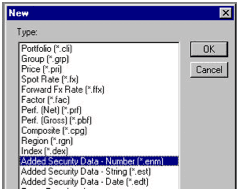
We will create an .enm file for each sector. Creating an *.enm file is much like creating a price file.
Choose File ‡ New ‡ Added Security Data – Number (*.enm). The next dialog box will ask you if you want the file created With Security Symbols or Without Security Symbols. Choose Without Security Symbols. Axys then creates an empty file. Enter the type and symbol for each of your balanced funds, along with the fund’s weight in that particular sector. The example below shows four *.enm files: US Equity, International Equity, Taxable Bonds, Municipal Bonds. Our balanced funds are shown in each file, along with the applicable sector weight.
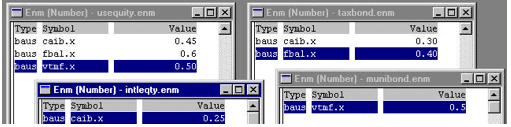
Now let’s look at the reports we will need in order to utilize this information.
Balanced Mutual Fund Report
This report shows you the current sector weightings for each of your balanced funds. This report assumes that you have entered the weights into the *.enm files. It further assumes that you have created a dummy cli file called balanced.cli. This cli holds one share of each balanced fund
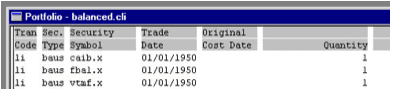
Run the Balanced Mutual Fund Report for the balanced.cli to see your current list of Balanced Funds along with the sector weights you entered into the *.enm files.
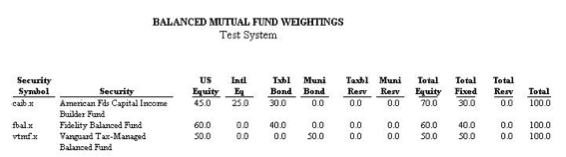
You can use Morningstar to retrieve the composition of a particular mutual fund. I recommend looking up your balanced funds once per quarter and adjusting the sector weightings accordingly.
Assets Under Management – Balanced Allocated
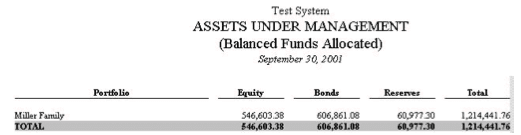
This report is a modified version of the normal Assets Under Management report. This report, however, allocates each balanced fund into the appropriate asset class using the weights in the *.enm files.
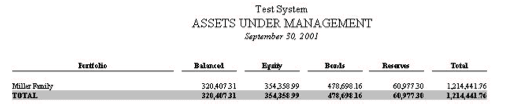
Here is the Miller Family allocation using the normal Assets Under Management report…
…and here is their allocation using the modified “AUM -- Balanced Allocated” report.
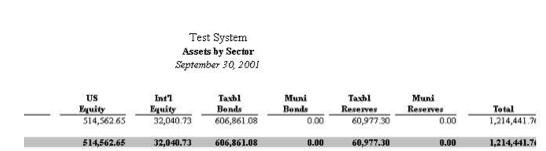
Assets Under Management by Sector (Balanced Allocated)
This report shows, as you would expect, the client’s assets by sector, with the balanced funds allocated into the appropriate sector. The picture below shows the left portion of the page (the page is too wide to display here…the portcode and portfolio name, contained on the right side of the page, are not shown below).
The other two modified AUM reports display the same information as above, using percentages instead of actual dollar amounts.
You can easily create the modifed AUM reports shown above, as well as the “Balanced Mutual Fund” report. There is not enough space in this article for me to outline each step-by-step change. If you would like the code for these reports, as well as the full-length version of this article (which outlines the necessary changes), just send me an e-mail: dherrera@cssi.org